When our gadgets breakdown, they can seriously impact our day to day life and communication seems to end completely. But with the help of this blog tips and troubleshooting you can fix the problem by your own

About

FB: SJ Matias | IG: ohh_its_saam

Saturday, January 9, 2021

Computer Basic Troubleshoot Techniques


General tips to keep in mind:

There are many different things that could cause a problem with your computer. No matter what's causing the issue, troubleshooting will always be a process of trial and error—in some cases, you may need to use several different approaches before you can find a solution; other problems may be easy to fix. We recommend starting by using the following tips.

  • Write down your steps: Once you start troubleshooting, you may want to write down each step you take. This way, you'll be able to remember exactly what you've done and can avoid repeating the same mistakes. If you end up asking other people for help, it will be much easier if they know exactly what you've tried already.
  • Take notes about error messages: If your computer gives you an error message, be sure to write down as much information as possible. You may be able to use this information later to find out if other people are having the same error.
  • Always check the cables: If you're having trouble with a specific piece of computer hardware, such as your monitor or keyboard, an easy first step is to check all related cables to make sure they're properly connected.
  • Restart the computer: When all else fails, restarting the computer is a good thing to try. This can solve a lot of basic issues you may experience with your computer.

Simple solutions to common problems

1.) Problem: Power button will not start computer

  • Solution 1: If your computer does not start, begin by checking the power cord to confirm that it is plugged securely into the back of the computer case and the power outlet.
  • Solution 2: If it is plugged into an outlet, make sure it is a working outlet. To check your outlet, you can plug in another electrical device, such as a lamp.
  • Solution 3: If the computer is plugged in to a surge protector, verify that it is turned on. You may have to reset the surge protector by turning it off and then back on. You can also plug a lamp or other device into the surge protector to verify that it's working correctly.
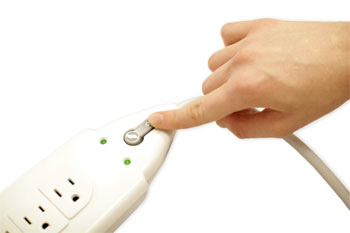
    resetting a surge protector
  • Solution 4: If you are using a laptop, the battery may not be charged. Plug the AC adapter into the wall, then try to turn on the laptop. If it still doesn't start up, you may need to wait a few minutes and try again.

2.) Problem: An application is frozen

Sometimes an application may become stuck, or frozen. When this happens, you won't be able to close the window or click any buttons within the application.

  • Solution 1: Force quit the application. On a PC, you can press (and hold) Ctrl+Alt+Delete (the Control, Alt, and Delete keys) on your keyboard to open the Task Manager. On a Mac, press and hold Command+Option+Esc. You can then select the unresponsive application and click End task (or Force Quit on a Mac) to close it.
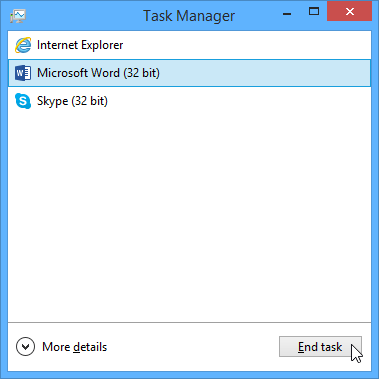
    screenshot of Windows 8
  • Solution 2: Restart the computer. If you are unable to force quit an application, restarting your computer will close all open apps.

3.) Problem: The mouse or keyboard has stopped working

  • Solution 1: If you're using a wired mouse or keyboard, make sure it's correctly plugged into the computer.
  • Solution 2: If you're using a wireless mouse or keyboard, make sure it's turned on and that its batteries are charged.

4.) Problem: The sound isn't working

  • Solution 1: Check the volume level. Click the audio button in the top-right or bottom-right corner of the screen to make sure the sound is turned on and that the volume is up.
  • Solution 2: Check the audio player controls. Many audio and video players will have their own separate audio controls. Make sure the sound is turned on and that the volume is turned up in the player.

    screenshot of iTunes
  • Solution 3: Check the cables. Make sure external speakers are plugged in, turned on, and connected to the correct audio port or a USB port. If your computer has color-coded ports, the audio output port will usually be green.
  • Solution 4: Connect headphones to the computer to find out if you can hear sound through the headphones.

5.) Problem: The screen is blank

  • Solution 1: The computer may be in Sleep mode. Click the mouse or press any key on the keyboard to wake it.
  • Solution 2: Make sure the monitor is plugged in and turned on.
  • Solution 3: Make sure the computer is plugged in and turned on.
  • Solution 4: If you're using a desktop, make sure the monitor cable is properly connected to the computer tower and the monitor.
Share:

About

 What is Gadget Technology

A widely circulated story holds that the word gadget was "invented" when Gaget, Gauthier & Cie, the company behind the repoussé construction of the Statue of Liberty (1886), made a small-scale version of the monument and named it after their firm; however this contradicts the evidence that the word was already used before in nautical circles, and the fact that it did not become popular, at least in the USA, until after World War I. Other sources cite a derivation from the French gâchette which has been applied to various pieces of a firing mechanism, or the French gagée, a small tool or accessory.

The October 1918 issue of Notes and Queries contains a multi-article entry on the word "gadget" (12 S. iv. 187). H. Tapley-Soper of The City Library, Exeter, writes: 

Technological device means any computer, cellular phone, smartphone, digital camera, video camera, audio recording device, or other electronic device that can be used for creating, storing, or transmitting information in the form of electronic data.


Classification of gadgets

Following the technologic advances of last decades, lots of gadgets designed for various tasks appear. Often one and the same device performs a great variety of functions, this circumstance allows referring it to more than one gadget classes.

To divide these devices into groups is rather a hard task, considering their great variety and amount. However, we can define some major categories combining gadgets with similar functionality and covering the majority of devices.

Some years ago our portal has already state this sort of “catalogue”. Then it included “mobile phones, USB-gadgets, spy and iPod-gadgets, medical gadgets”. For the last years the hi-tech world has changed greatly: some devices have left our reviews, while the others have appeared. So, the time has come to “put everything on its place on a shelf” and “count them all”. Start!


Troubleshooting 

is a form of problem solving, often applied to repair failed products or processes on a machine or a system. It is a logical, systematic search for the source of a problem in order to solve it, and make the product or process operational again. Troubleshooting is needed to identify the symptoms. Determining the most likely cause is a process of elimination—eliminating potential causes of a problem. Finally, troubleshooting requires confirmation that the solution restores the product or process to its working state.

In general, troubleshooting is the identification or diagnosis of "trouble" in the management flow of a system caused by a failure of some kind. The problem is initially described as symptoms of malfunction, and troubleshooting is the process of determining and remedying the causes of these symptoms.

A system can be described in terms of its expected, desired or intended behavior (usually, for artificial systems, its purpose). Events or inputs to the system are expected to generate specific results or outputs. (For example, selecting the "print" option from various computer applications is intended to result in a hardcopy emerging from some specific device). Any unexpected or undesirable behavior is a symptom. Troubleshooting is the process of isolating the specific cause or causes of the symptom. Frequently the symptom is a failure of the product or process to produce any results. (Nothing was printed, for example). Corrective action can then be taken to prevent further failures of a similar kind.

The methods of forensic engineering are useful in tracing problems in products or processes, and a wide range of analytical techniques are available to determine the cause or causes of specific failures. Corrective action can then be taken to prevent further failure of a similar kind. Preventive action is possible using failure mode and effects (FMEA) and fault tree analysis (FTA) before full-scale production, and these methods can also be used for failure analysis.


Share:

About Me

My photo
To fix your device yourself you will not only have to purchase replacement parts but also the specialist tools to conduct a repair. Save yourself the time, money and research of sourcing the right tools for the job as well as the necessary parts needed and when you hire Gadget Medics to come to a place convenient to you to repair your device complete with all of the necessary tools for the job. Thousands and billions of people have a mobile phones, laptops, computers, iphones, or other any gadgets, but how do we know if our gadgets has a problem on it, and if it does do we know how to fix it? This blog gives you easy tips, troubleshooting and repairing of your gadgets by yourself.

Followers

Gadgets: Problem or Solution

With an increasing ageing population, the number of people with disabilities - ranging from mild to severe - is on the increase. The challenge is for society to come up with solutions that will enable disabled people to maintain enriched lives. The obvious and most immediate solution to this challenge is to increase the resources in social services that are on offer to match increased demand. However, this is seen to be unviable economically. Thus, many governments are looking at technology companies to engineer solutions at a much lower cost.

BTemplates.com

Search This Blog

Powered by Blogger.

Blog Archive

About Me

My photo
To fix your device yourself you will not only have to purchase replacement parts but also the specialist tools to conduct a repair. Save yourself the time, money and research of sourcing the right tools for the job as well as the necessary parts needed and when you hire Gadget Medics to come to a place convenient to you to repair your device complete with all of the necessary tools for the job. Thousands and billions of people have a mobile phones, laptops, computers, iphones, or other any gadgets, but how do we know if our gadgets has a problem on it, and if it does do we know how to fix it? This blog gives you easy tips, troubleshooting and repairing of your gadgets by yourself.